 HOME
HOMEThe transactional email delivery log lists and displays the status of every transactional email you have sent through our system, limited to the last 90 days. It shows each address an email has been sent to, along with the open and click rates for that address. You can also view the content of each email, complete with personalizations.

The delivery log is visible after you have sent your first transactional email. To access it:
- Click Transactional.
- In the right sidebar, click Delivery log.
We only store transactional email content for 30 days, and after 90 days the email itself will be removed from the delivery log. The delivery log will show the last 90 days of emails, and the content will be viewable in emails sent within the last 30 days.
- Email content is stored for 30 days
- Delivery log information is stored for 90 days
- Tracked links in transactional emails will cease working after 90 days
- Open and click data is stored for 90 days
Send status
In the delivery log, you'll notice a circle to the right of each email listed, which changes color depending on the status of the email:
- Green — The email has been sent with no errors reported.
- Red — The email has bounced or been reported as spam.
- Grey — The email is being held in a queue before sending is complete.
Engagement
Click the number in the "Clicks" column for a quick glance at the content your recipient is engaging with in your transactional email.
If you click on an email address in the delivery log, you will see a list of every transactional email you have sent to that address. You will also have the option to View campaign activity, which will show you what marketing emails you have sent to that address, if any.
Resend transactional emails
If a customer reports they have not received a particular transactional email, you can resend it to them, so long as it was sent within the last 30 days. To do so, search for their name in the search box, then locate the appropriate email. Hover your cursor over the status circle, then click Resend.
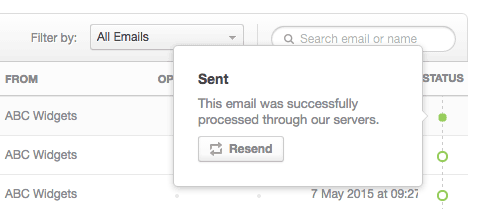
You can resend sent and soft bounced emails, but not those that are in a queue or have been hard bounced. Read more about bounced email types.
When you resend transactional emails that originally had attachments, the email will be sent without the attachment. This is because attachments are not stored in our system.
Advanced search
The search field at the top of the delivery log can be used to search by email or name. You can also filter search results by their status — "All emails", "Bounced" or "Marked as spam" — using the dropdown to the left of the search box.
In addition, advanced searches can be performed by wrapping search terms in square brackets, and using special keywords. Search terms are not case sensitive, and you can use AND and OR operators, along with * and ? wildcards.
For example:
[from.name:*Alex* AND to.email: "jane@abcwidgets.com" AND subject: *Order#*]Would search all emails sent to jane@abcwidgets.com from a sender named Alex, with a subject containing "Order#".
Available keywords include:
|
|
We use Amazon's Elastic Search, so for further search options, refer to the official documentation.