 HOME
HOMEAs smart transactional emails are hosted with us rather than on your server, there needs to be a way to insert personalized details into them using data from your website or app before they are sent out.
Email variables allow you to add those personalizations so you can include recipient-specific information like customer names, order numbers, account manager details, custom URLs, and more.
How to use email variables
An email variable in a smart transactional email is indicated by square brackets. For example, [customer_name] or [order_number].
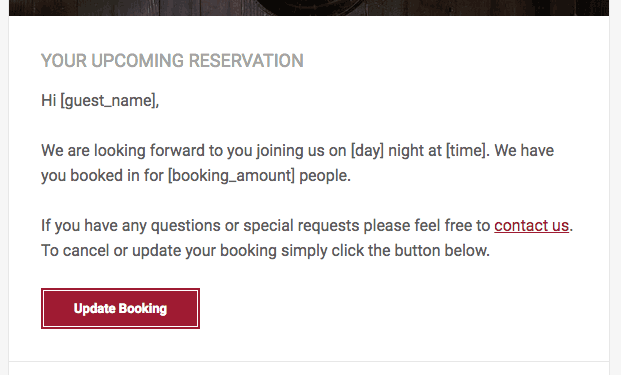
In the image above, the email variables are:
[guest_name][day][time][booking_amount]
When the email is triggered to send, the variables are replaced with data provided in a JSON payload, using the data argument (Ask your administrator for the API documentation to see how to structure the entire payload):
"Data": {
    "guest_name": "Jane",
    "day": "Wednesday",
    "time": "7.30pm",
    "booking_amount": "2"
}
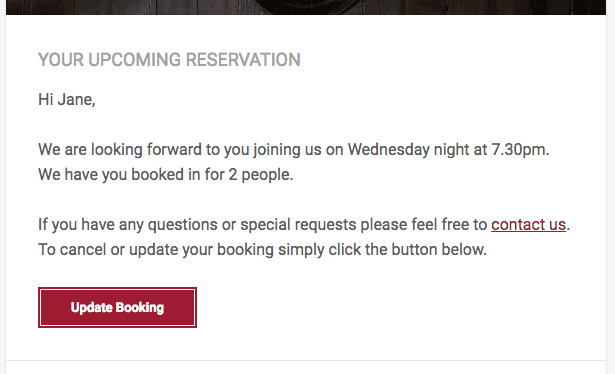
Using the above data, the recipient would receive the following email:
When using email variables, it is a good idea to also use fallback terms.
Fallback terms
A fallback term is a string that will be substituted for an email variable if the relevant data is not provided. It can be any plain text word or phrase.
You can add a fallback term to a variable by adding ,fallback= to the end of the variable name, for example, [variable,fallback=fallback term]. Fallback terms function the exact same way as personalization fallback terms. Make sure to take into account sentence structure in your emails when using variables and fallback terms.
Where email variables can be used
There are multiple places in a smart transactional email where variables can be used.
Subject line
Either type your email variable in directly, or add a placeholder to the beginning of the subject line by clicking Insert email variable on the right.

Sender details
Email variables can be used to personalize the "From" name and email address, instead of using a generic sender address like sales@yourcompanyname.
For example, a sales team can set up an email to send to all customers, but personalize it for each recipient using email variables in the "Who is it from?" fields. When the customer receives the email, it appears to be sent from someone they know.
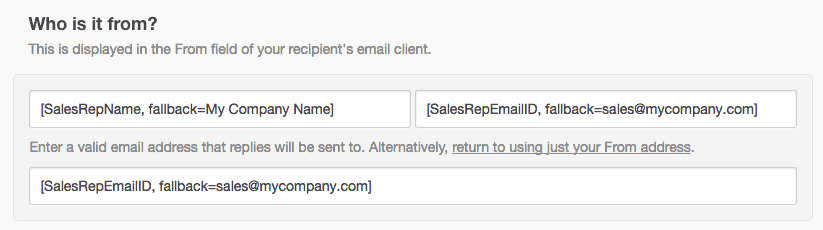
The image below shows email variables used for the "From" name, email address, and the reply-to address. Note the fallback — if the email address doesn't exist in our application (either because the person has left and it has been removed, or there is a typo), replies will be sent to a generic group email address.
Always include a generic "From" name and email address as fallback terms when using email variables to personalize sender details.
Text blocks
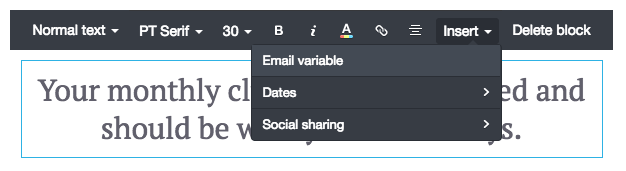
Either type the email variable directly into a text block, or select the text block, then click Insert > Email variable to add a [variableName, fallback=] placeholder:
Links and buttons
You can also insert variables in text, image, and button links. For example, you could create a button that takes a customer to a tailor-made order tracking page:
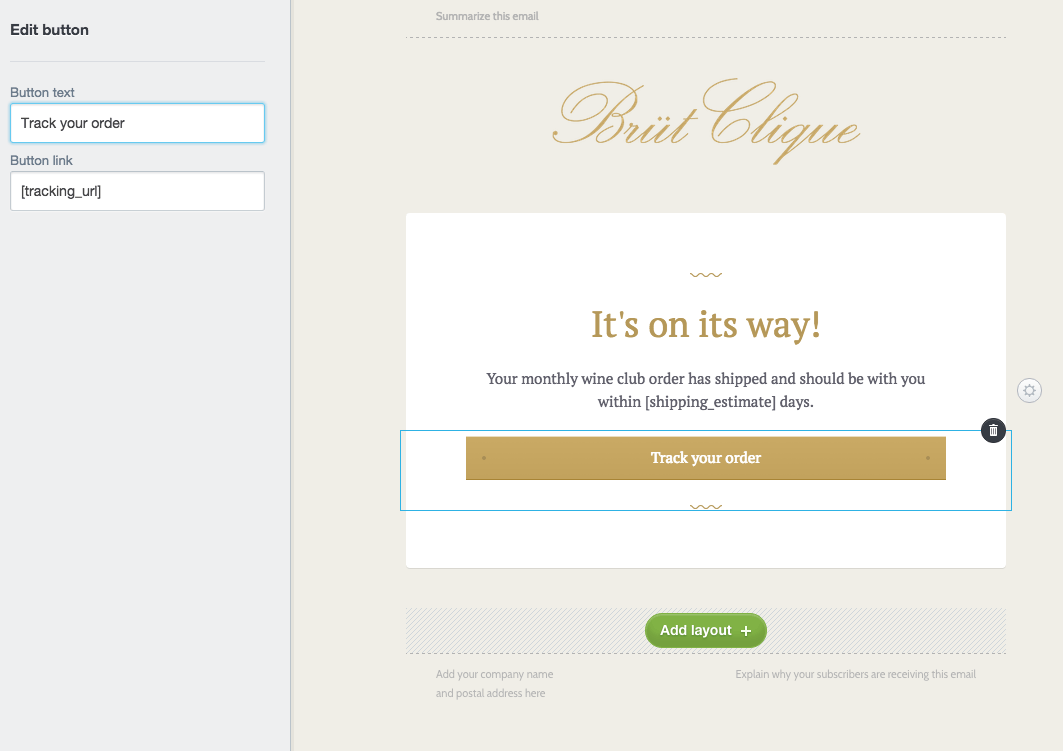
You could also insert an email variable in the button text, for example, that specifically calls out a customer's name.
The Liquid templating language
Smart transactional email also supports Liquid, an open-source language created by Shopify to enable dynamic content. While it can be used in a similar fashion to email variables, it enables more advanced things like constructing an inventory list for invoices, formatting text, and showing content based on certain conditions.
You can use standard email variables and Liquid in the same transactional email. Liquid is not supported in the "From" name and email fields of a smart transactional email.
Test your email variables
You don't need to make an API call to send a test version of your smart transactional email. From our application you can send your email to up to five email addresses, with the ability to substitute variables with replacement content.
If you want to test that your transactional email is correctly grabbing the information from your website or application to replace your variables, you'll need fire the API call directly from your own code.
To test your smart transactional email variables:
- Click Transactional.
- Click the email name below "Emails".
- Click View and Edit in the right sidebar.
- Click Send a test at the bottom of the screen.
If you've only used email variables in your smart transactional email, you'll see a screen that looks like this:
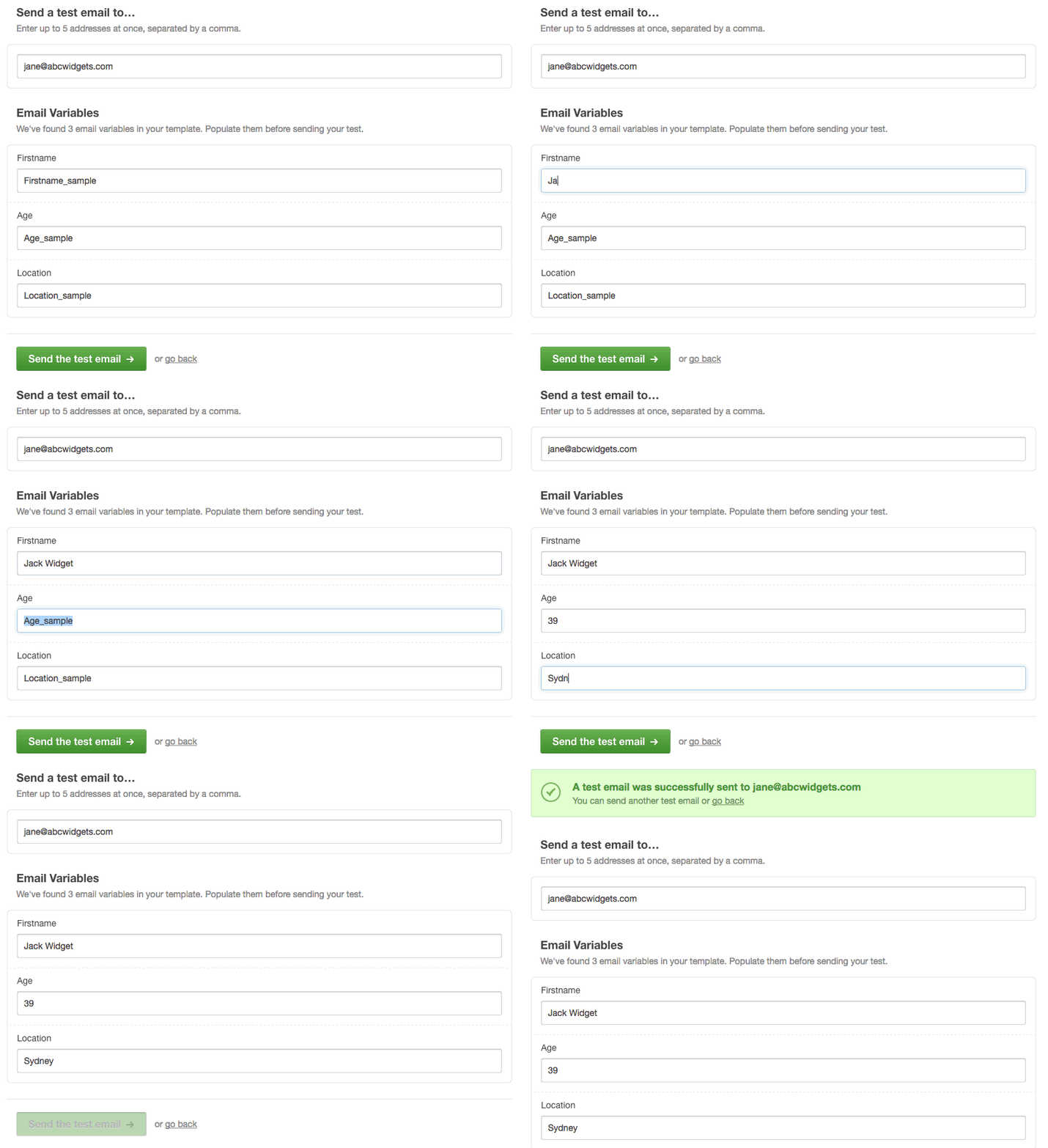
Enter up to five email addresses to send the test to, making sure to replace the variables with example data, then click Send the test email to see how the final version will look to end users.
If you've used the Liquid templating language, you may see a screen that looks like this:
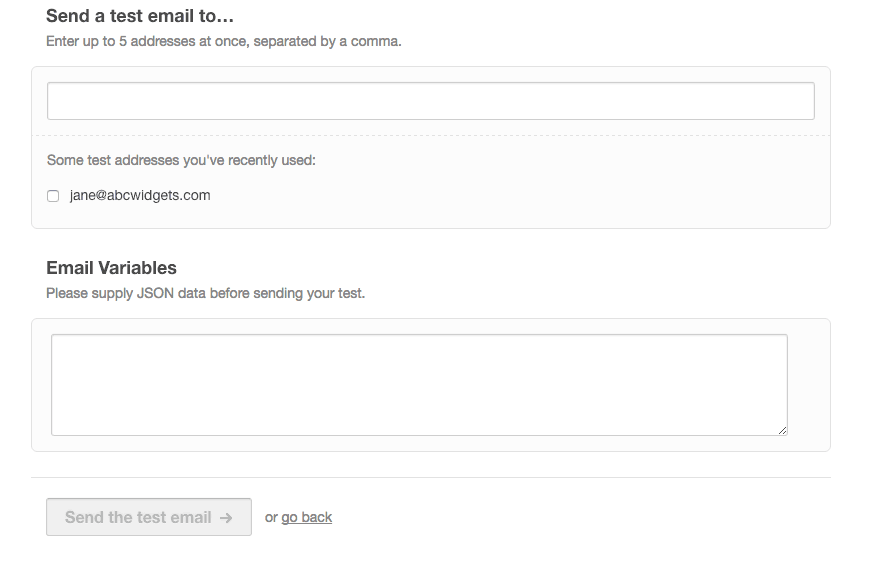
Insert your test JSON into the "Email Variables" input box to replace any Liquid in your email.
If you're unsure what's required for the "Email Variables" fields, talk to the developer who is integrating your smart transactional email into your website or app for sample data.