 HOME
HOMESubscribers can resubscribe themselves through a signup form connected to your list or a preference center. However, if an email address was accidentally unsubscribed, you also have the option to reactivate the subscriber directly within your account.
By adding people to a subscriber list, you are asserting that you have permission to email them. If you're not sure, read more about what counts as permission to send.
Reactivate a subscriber
To reactivate a subscriber you need to open the list that they were subscribed to:
- Click Lists & subscribers, then click on the relevant list.
- Select Subscribers from the left menu.
- Click the Unsubscribed tab, as pictured below.
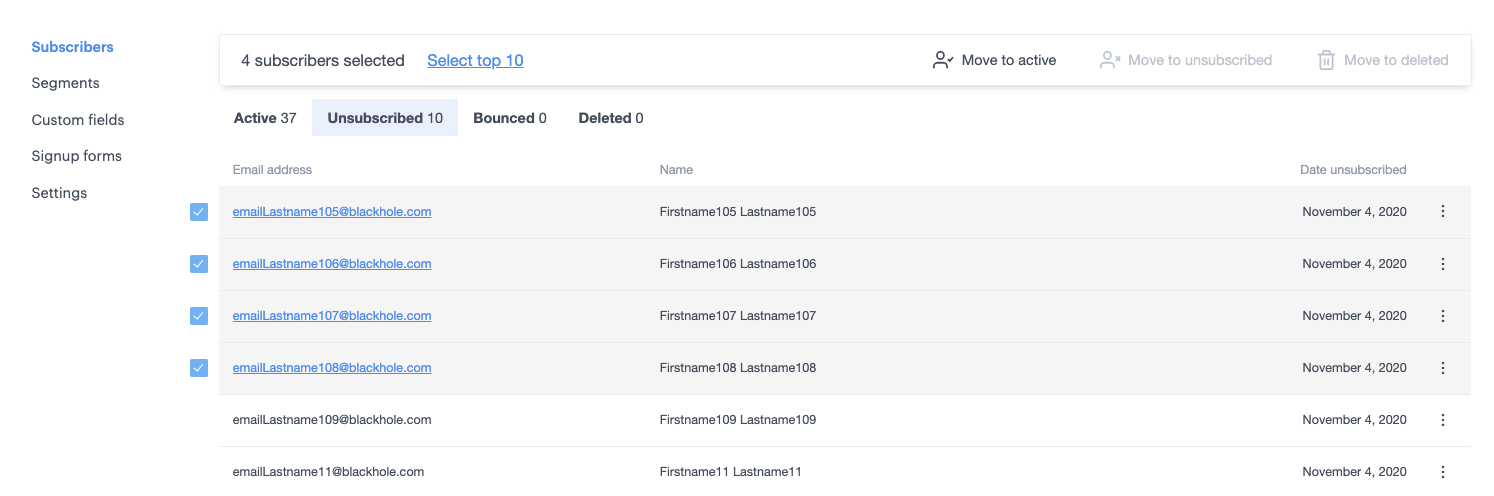
- Use the search field to find the subscriber, then select the checkbox to the left of the email address.
- Select Move to active from the action menu which appears at the top of the table.
This action will reactivate the subscriber for this list only. If you want to add them to any other lists, now or in the future, you also need to remove them from your suppression list (which they will have been added to when they were unsubscribed from the list).
Frequently asked questions
If a subscriber is being sent a series of journey emails, will resubscribing them restart the email series?
No it won't, and they will not be sent any of the emails in the journey that were due to send while they were unsubscribed. However, if resubscribed, they will be sent any remaining emails.
For confirmed opt-in lists, will another verification email be sent when the person is resubscribed?
No. Verification emails are only sent when someone signs up "organically" through a subscribe form.