 HOME
HOMEThe email builder supports video from Vimeo and YouTube, via the "Video" content block.
To add a video, drag and drop the "Video" content block from the left sidebar into the column of a section, then paste a Vimeo or YouTube URL into the "Enter Video URL" field. A thumbnail will be automatically generated that links to the video, with a play button overlaid.
To adjust the width of a video so it lines up with the text in a section column, instead of the section border, select the Add video spacing checkbox.
Can I embed video or music/audio to be played directly in an email?
Compatibility among email clients for embedded video and music/audio is very low. In some email clients the functionality is limited, while in others it doesn't work at all.
As such, embedding video or music/audio is not supported in the email builder at this time. Below we'll explain why it's better to link to video or music/audio instead of embedding, and provide a few tips on how you can still make your design compelling.
Link to video or music/audio instead
As a general rule, it is better to store multimedia content like videos and music/audio on a website, and link to that in your email. Doing things this way:
- gives your subscribers the chance to more easily share and interact with the content
- can provide better tracking statistics, depending on the service you use to host the content
- gives you greater control over what your user does after they play the content.
To create a similar effect to that of an embedded video, use the "Video" content block as shown above. Alternatively, if you're not using YouTube or Vimeo, insert a screenshot of the video in your email with a "play" symbol overlaid.
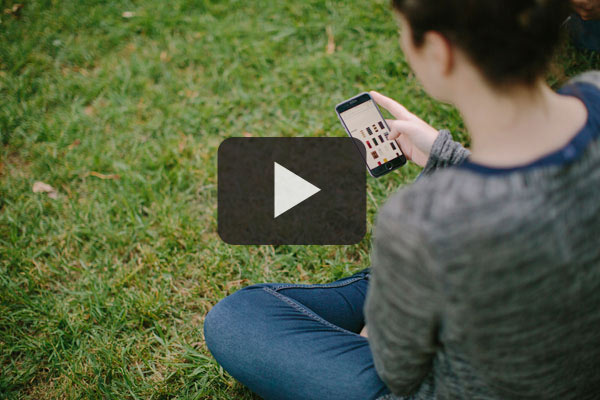
You can then link that image to wherever your video is hosted. If you want to catch your subscriber's eye, you could make the image in the email a short animated GIF, as a preview.
If you still want to embed video or music/audio in your email, you will need to custom code it.