HOME
HOMESteps in an active journey can be edited or deleted, however to add steps, you need to turn it off first. Depending on the step you are trying to change, there are some things to take into account before editing.
Turning a journey off prevents new subscribers from entering it, but subscribers already in the journey will continue to move through the steps "silently", where the journey will not send them emails, or update their custom fields. Learn more.
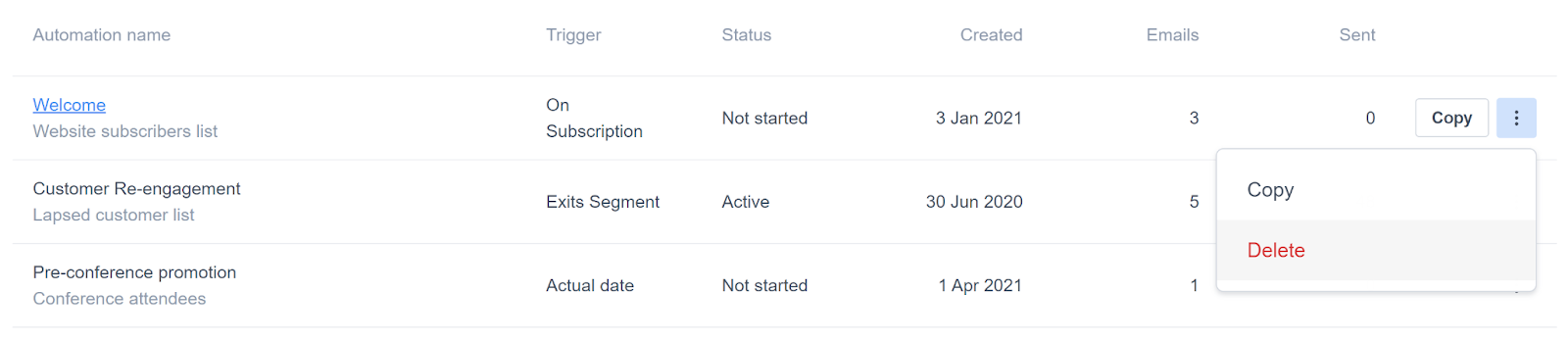
To access your existing journeys, click Automation in the top navigation, then click on a journey name to open it in the journey designer.
Edit email content
When you edit the content of an email step in an active journey, your new version is automatically saved as a draft while you make changes. Subscribers moving through the journey while you are making changes will continue to be sent the old version of the email. To start sending the new version, click Preview, then save, then Save & return to journey.
To continue sending the old version and work on the draft later, you can return to the journey by clicking Return at the top left. Next time you edit the email content, your draft will load.
Delete email steps
You can't delete an email step if it's used in a journey activity condition, either in the current journey you're editing or a different one.
Edit delay steps
If you edit a delay step in an active journey, every subscriber currently at that delay step will still use the original delay time. Subscribers who enter the delay step after the change will use the new delay time.
Delete delay steps
If you delete a delay step in an active journey, every subscriber currently at that delay step will be removed from the journey and will not receive any following emails.
If you need to remove a delay, try to do so when there are no subscribers waiting at that step. If that’s not possible, instead of deleting the step, set the length of the delay to zero. This ensures that no subscribers are removed from the journey.
Edit wait until steps
If you edit a wait until step in an active journey, subscribers already at that step will continue waiting until the original start time. Once that time arrives, the new start and end times will determine whether they can progress through the step.
Subscribers who enter the step after the change will follow the new settings.
Delete wait until steps
If you delete a wait until step in an active journey, every subscriber currently at that step will be removed from the journey and will not receive any following emails.
If you need to remove a wait until step, try to do so when there are no subscribers waiting at that step. If that’s not possible, instead of deleting the step, set the start time to 12:00 AM, the end time to 11:59 PM, and ensure this applies to every day of the week.
Delete condition steps
A condition step can't be deleted until all steps below the "Yes" or "No" path have been deleted. After removing the "Yes" or "No" path, the condition can then be deleted, with the steps below the remaining path moving to the previous step.
Edit custom field steps
When you modify the configuration of a custom field step, the change will take effect within one minute, and apply to subscribers who arrive at the step after that point.
Delete a journey
To delete an entire journey, click Automation in the top navigation, click the three-dot icon for the journey you want to delete, then choose Delete from the menu that appears.